Owning a WordPress site is just the beginning. If you want to attract customers to your website, then finding the right set of features for your site in terms of hosting, plugins, themes, etc. takes a lot of effort. Our comprehensive blog post will help you avoid the time required to do that. As a lot of things are involved in coming up with a full-fledged WordPress site that suits your requirements, it can cost you a lot if you do not have a piece of complete knowledge.
The following are the components that actually add to the cost of bringing your website to life:
A lot of businesses are using WordPress to host their website, but that does not mean it is the right solution for your business too. This guide will help in deciding How much should you actually spend.
Domain Name ($10 – $30 / year)
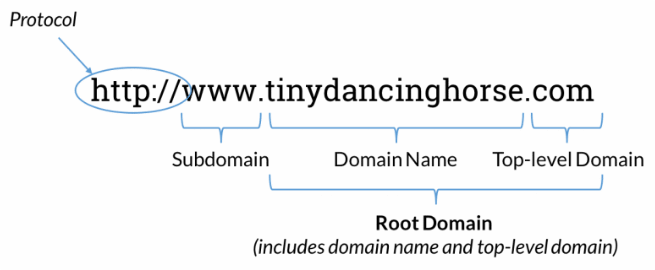
The domain name acts as an address of your website on the internet. Some of the popular domain names include www.youtube.com, www.facebook.com, etc. Your domain name should be short and also easy to remember. You can read more about domains here.
There are a lot of options you can choose from when it comes to purchasing a domain name but GoDaddy and NameCheap are the most affordable options in the market. A domain name will cost you anywhere between $10 – $30 per year.
Whatever it is we suggest not using WordPress’s free domain name option that looks like “www.yourdomainname.wordpress.com.” If you want people to take your business seriously, then you need to move to self-hosted WordPress and get your own domain name.
As .com is the most desirable domain name, it might happen that it has already been taken and will cost you thousands of dollars to purchase the same. You can follow this to get some backup options.
Total Cost (estimate): $10/year – hundreds, thousands, and even millions of dollars.
Website Hosting($2.75 – $729 per month)
Deciding which website hosting service provider you will be choosing for your website is the most important step to invest in when creating your WordPress site.
Website hosting helps you to create a shelf for your website in a library of websites[the internet] wherein all the necessary images, graphics, documents, etc., which are necessary for your website to work are stored. If there is no hosting, then there will be simply no website.
You can go through this to decide which hosting provider proves the best for you. It also explains the different kinds of hostings. The hosting cost can vary anywhere between $2.75 to as high as $729 per month. Following are the various types of hostings:
For a new site that has little traffic shared hosting is a good starting point. If there is sufficient traffic that is coming to your website then you can go for VPS hosting. Once you have thousands of visits to your website in a month, only then you should switch to the Dedicated hosting which provides a dedicated server for your website. You should opt for this only if you have loads of traffic coming in.
While it is not necessary to have a WordPress hosting provider but it makes the installation of WordPress easier with you being able to do it in just a click. You can see the best WordPress Hosting Providers in 2022 here.
Total Cost (estimate): $47.40/year – $1,199.88/year
Themes and Design($0 – $50,000 as a one time charge)
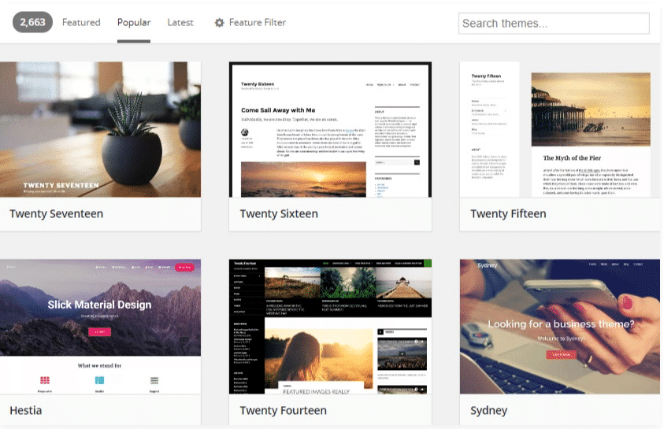
The great thing about themes is that there are already a lot of free ones that you can choose from the WordPress library. You can explore and install them with the click of a button and later uninstall too. Although, WordPress has free themes but they are generally not great for a person really wanting to grow his business.
Once you have bought a theme on WordPress, you can reuse it for as many websites as you want. Also, these can be improved with the help of plugins later on. Find how to install themes here.
Also, when choosing a theme do ensure that it is mobile friendly too, as the online retail sales using mobile are already rising.
Total Cost (estimate): $200-$10,000
Plugins / Extensions ($50 – $10,000 as a one time charge)
Plugins can be regarded as the backbone of WordPress. These are the building blocks, using which we add functionality to our website. These are apps written in PHP which extend the features which basic WordPress offers. Ranging from SEO Optimization to Work Management, plugins offer a lot more and make the native platform rich for website development.
We would like to inform our readers that most website hacks in WordPress are done through plugins, so you need to be very careful about your choice of plugins. Considering paid plugins over free ones can save you from malware attacks and backdoor to hackers. This certainly affects your website in the longer run.
So, here is a list of some of the safe web plugins which are tested and have been verified to be free of malicious activities :
The Astra Starter Sites plugin allows you to import complete website demos, tweak them and build professional websites. It typically simplifies the hard frontend pay up which UI designers might charge you around 100$ for. Astra uses Elementor natively, which is the smartest way available to customize the looks of the website using drag and drop.
PRICE: Free, but recommended to upgrade to Pro. Costing 47$. More details can be found here
It is a powerful plugin that will enable Google analytics platform (a google web service to track real-time traffic on websites) to the website. Using MonsterInsights we get access to our site’s real-time statistics, analyze Google AdSense banner clicks, track file downloads and also track web referrals to see where users are coming to your site from and where they’re going afterward, and more.
PRICE: Free with the option to upgrade to premium costing $99.50 – $399.50/year.
MailChimp Email helps you to learn more about your audience so you can build your brand. So, to connect to the audience better regardless of the site, MailChimp is the go-to plugin. It is a user-friendly newsletter provider helping in email automation and more.
PRICE: Free version is available, or we can switch to premium plans cost $59 – $149/year.
W3 Total Cache It works by caching images, links and data on your website hence making it faster to load. Since the loading time is decreased, the SEO Ranking of the website goes up giving viewers a seamless experience in visiting your website.
PRICE: Free version is available, the professional version is more feature friendly as works better and is available for $99/site
Yoast SEO It is a must-have tool and helps in nailing the SEO Ranking for your website, hence, helping the website to be in the top results of the search. It ensures more traffic and readers through its advanced features.
PRICE: A free version is available, or we can always get the premium which costs $69 (one-off).
Total Cost (estimate): $0 – $300 one-off charge
Security ( $100 – $500 as a one time charge)
One should not forget the website security, even if you are not building an eCommerce or payments site. The website security affects your SEO Rank, website loading time and how user data is available to hackers. One important method to ensure security is being up-to-date with the core-WordPress software. Another way is if you are using any plugins, make sure they are not obsolete. As discussed, WordPress websites are easily hackable so, the first thing we need to do it a BACKUP
Many paid and free WordPress backup plugins exist, that can be used. We recommend taking full website backups regularly on a remote location to ensure website safety and recovery. Backup applications cost around $100 one-of and are must buy recommended.
Secondly, we should use a FIREWALL to deny unauthenticated access to hackers who might be trying to break in. Sucuri is our personal favorite as it is safe, trusted and is proven to work. You can read more about the firewall here. A firewall is generally available as web application plugins charging $300 one-off.
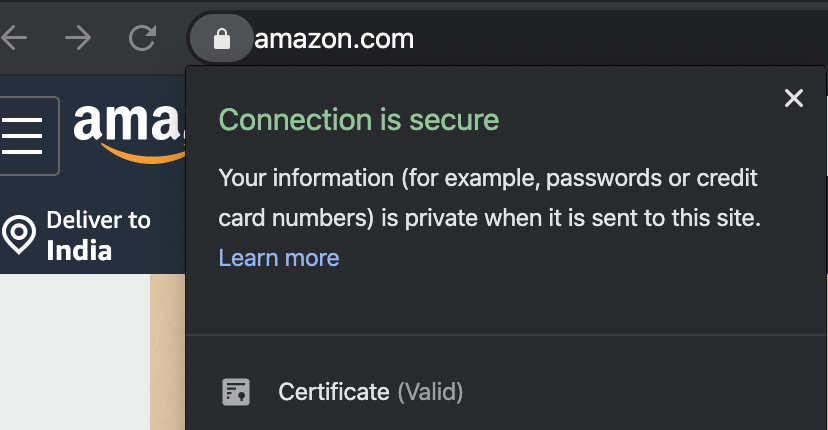
Another IMPORTANT thing is an SSL Certificate. It helps to make the site more secure and improving the SEO Ranking as even Google does not prefer non-SSL Secured websites. You can buy one from the hosting service or some even provide it for free. Price ranges from $0 to $ 10 for an SSL certificate.
Total Cost (estimate): $0 – $300 one-off charge
Development Charges ($0 – $1000 as a one time charge)
If you are new and scarce on time, you may choose to hire a developer to build your WordPress website. These are WordPress professionals who can help to bring your idea to life in a shorter period while it may take you days in the process.
Developer costs vary geographically and based on the experience of the developer. The typical cost to set up an entire platform for a basic website might lie in the range of 150$ to 200$ depending upon the features that need to be incorporated.
For a complex design involving setting up a web-store, newsletters, sign-up, profiles, and payment-gateways, it is recommended to get a developer to ensure the safety of the platform service and you might have to easily spend over $1,000 as a one-time setup cost.
There is an abundance of resources available online (both paid and free) to guide you through the process, hence it is only a matter of confidence and time, about hiring a developer. Also, usually, the hosting service providers, are all in for getting you a developer to set up your website and generally charge up to $300 for basic setup which is not recommended as hosting providers have one-click WordPress installation available these days.
Like any other tech, the WordPress community is at large very friendly and supportive on their forums and is easily reachable.
Total Development Cost (estimate): $0 – $1000 one-off charge.
Brief WordPress Pricing Overview :
Though we have deeply described the pricing and the ways to minimize the setup cost, it is hard to put up an approximate figure on the total setup, as it depends upon the technicalities of the requirement. Here, is just a quick overview of the services that you can buy for the least money.
To be spent on
Minimum Costing
Recommendation
Domain
12$
Recommended to get a .com domain name
Hosting
$3.95 – $34.95
Recommended to start off with shared hosting
Design and Theme
$0-$200
Recommended to use free themes and then switch to paid ones
Plugins
0$ to 400$
Recommended to get safe free plugins, and for more feature requirement to pay for these
Security
0$ to 300$
Ensuring security is a must
Development Charges
0$ – 1000$
For basic website can be skipped with free tutorials available.
Frequently Asked Questions
Q. I already have a domain. Can I proceed with the same with buying hosting from someone else?
Ans: Yes, in fact, if you have a domain that’ll bring down the overall setup of the price. But just be sure that no other website is working on your domain. You can but you should not access two websites using a single domain.
Q. Which category of hosting service do you recommend? Which of the above mentioned perform the best?
Ans: For hosting services we recommend starting off with shared hosting initially if you have a small presence online. After investing in marketing when you have drawn a sufficient crowd to your website, you can go ahead to purchase a Dedicated server using the Dedicated hosting.
Q. What are some good sources to learn to develop my own website using WordPress?
Q. Is website security such a big thing? Do I really need to pay for an SSL certificate?
Ans: Yes, your WordPress website security is a big issue and we do not recommend cutting costs upon it. All the user data and even your credentials (using WhoIs) can be disclosed is website security is week.
SSL Certificate, on the other hand, helps in securing the connection the users have with your website hence making their credit card and transaction information safe. Also, it increases the website on Google Search rank.
Q. Are paid plugins really that helpful? Should I buy the paid version of the plugins I use?
Ans: We suggest you try free versions of the trusted plugins at first. If you really like and need extra functionality, you should go ahead and purchase them.
Q. I need some additional information on some plugins. How can I know which ones are right? Ans: You can reach out to us on <buddydevelopers@gmail.com> for suggestions on plugins or simply look out for your requirements on Google.
Q. A developer in my region charges much higher than this. Is it worth the money? Ans: As informed, the developer charges vary region to region. If you are building a complex user-centric website with transactions and lots of user data, we would recommend getting it done via a developer. In case the developers in your area are costly, you can use tools like freelancer to hire developers from other regions that are in your budget.
Q. What are some good ways I can be on top of Google Search Result? Ans: Google search Results require a technique called Search Engine Optimization. Look out and search for it to know more. Also, your website’s loading time and security are important to get a good search rank.
Q. One of my websites is performing/loading slowly. Can you suggest how should I speed it up? Ans: One of the ways to speed up a website is to use a fast server ( hosting service ). Another way involves the reduction of big content like large images on the website. You can also use caching techniques suggested by Google to speed up the website.
Q. What are the things which I can really avoid out of the above?
Ans: If you want to avoid something, we would say to cut it down on plugins. Security, Domain and Hosting are a must. Developer charges can also be compromised and adjusted. We also recommend getting a professionally coded website if your monthly expense on WordPress goes over $1000.
Nowadays security is a big concern over the internet. Secure websites build visitor trust and search engines give more value to Secure websites.
Do you know? your website is secure or not. In this article, we will learn
How to know if your website is secure or not?
If you visit your website and this warning appears in the browser.
Not Secure Website
What do you think, how it will affect your customer’s mentality? Do you think they will continue to buy what they were buying?
Probably not and there will not be a few people who think the same. almost 82% of customer hits the close button.
Now the big question arises. How do you protect your customers and gain their trust?
You can do that with a security technology SSL (Secure Sockets Layer) that is commonly used to secure server to browser transactions.
SSL
What is an SSL certificate?
all of the information on the Internet is basically transferred from one location to another location in a protocol called HTTP which stands for Hypertext Transfer Protocol. HTTP by itself is unprotected and not secure. many hacker target websites that using HTTP. So a technology call SSL or Secure Sockets Layer was developed to protect the information traveling on the internet.
when HTTP is being projected by SSL. It inherits the letter S which means it’s secure.
SSL( Secure Sockets Layer) is not only helpful for building a secure connection between the browser and the Web Server but also it has many other benefits listed below.
SSL Protects Data by Encryption
SSL provides end to end secure connection between Browser and Web Server.
Let’s say, you are in a coffee shop and using WIFI and you hit with an urge to buy something online.
Without SSL and HTTPS, if you enter your credit card information. This information can be stolen because you are in a public WIFI connection and anybody using that WIFI could be listening to your transaction.
Without encryption, the information is transmitted as text that anybody can read. the way SSL and HTTPS work are by scrambling this information. so that only people can read it with the correct decryption key and not a Hacker.
SSL declare Your Identification
Increase Trust for Visitors
From 2018 SSL has been made mandatory by all browsers. As I have explained above it gives your visitor a sense of trust. They will not hesitate to share their personal data as they get trust. your website will protect it.
SEO Benefits
No doubt, Google has taken a rigid stance to protects the privacy of its consumers.
WordPress is a popular tool for building websites, and it has many helpful features. One of these features is called “post revisions.” This feature automatically saves different versions of your posts and pages as you work on them. If you make a mistake or want to see how your content looked before, you can easily go back to an earlier version. In this blog post, we will explain what post revisions are, how they work, why they are useful, and how you can manage them to keep your website running well.
What is Post Revisions?
Post revisions is a feature of WordPress that allows you to undo your changes and go back to a previous copy of your posts or pages.
WordPress creates post revisions each time a user clicks on the save, update, or publish button. these revisions are permanently stored in the WordPress database like a post.
WordPress also has an autosave feature. In which WordPress automatically creates an auto-save revision every 60 seconds. auto-save are temporary revision and automatically replaces the older version with the new auto-save on creation. It saves your post content when the unlikely happens, such as power outages or browser crashes.
if your browser crashed or your computer hanged while writing, then you can restore your latest draft from the autosave or your post from the revisions list.
Importance of WordPress post revision
WordPress revision is a great feature added by WordPress. It helps the blogger or writer to write a perfect blog without being worry about data loss.
Revision keeps track of each line and changes done in it over a period of time. For multisite this feature helps site users with Editor role to review changes done by different authors.
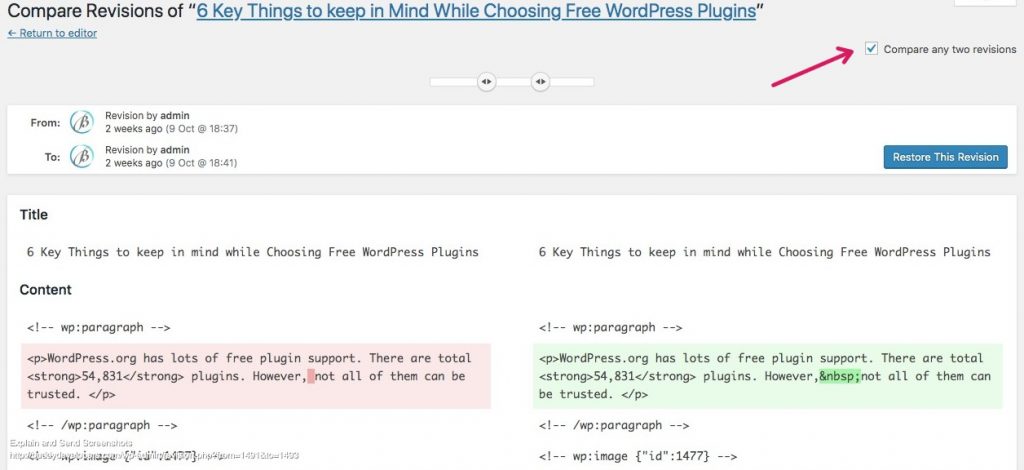
It allows you to see what changes were made in each revision. The display indicates what has changed in each revision – what was added/removed, remained unchanged. Lines added or removed are highlighted, and individual character changes get additional highlighting.
How to use WordPress revision
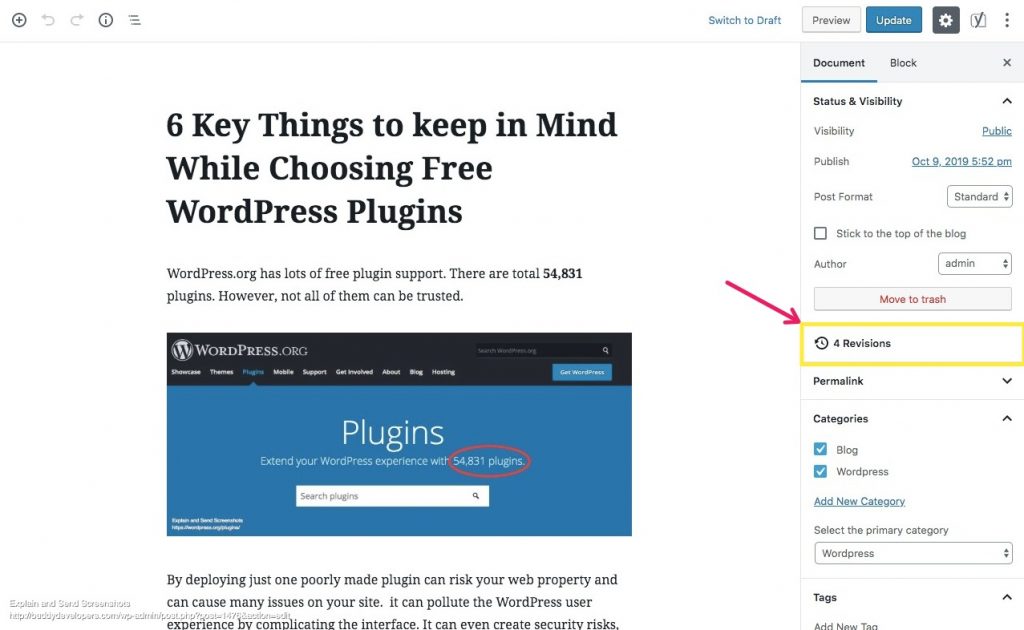
WordPress displays the number of revisions on the right-hand side of your post editor screen, under the ‘Document’ panel. Clicking on the ‘Revisions’ will take you to post revisions screen.
The Screen will show you the latest revisions of the post with pagination and scroller on top. this pagination and scroller will move you to earlier revisions of the post.
On the top, you will see a button “Restore This Revision”. clicking on it will make the current state of revision as your post content.
Keep in mind that restoring to an earlier revision will not delete the latest version of your post. Instead, WordPress will store it as another revision in the database.
You can also compare two revisions with the help of a checkbox ‘Compare any two revisions’ on top.
Making it checked will split the scrollbar button into two, and you can take each button to a different revision and compare the content of both revisions.
How it affects Site performance
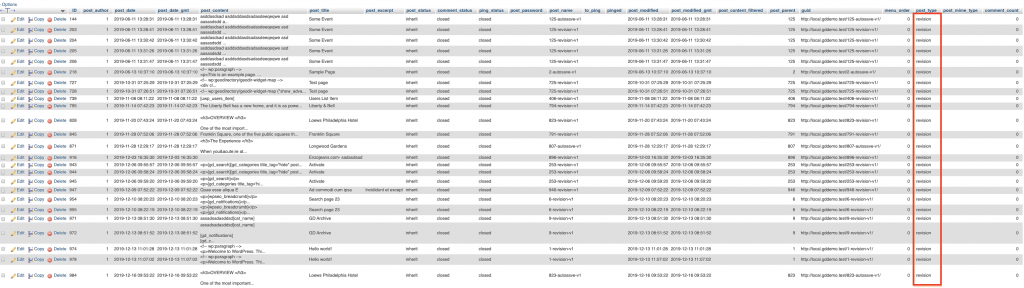
When you run a WordPress site, it’s important to know how post revisions impact performance. Post revisions save different versions of your posts, which is great for managing content and going back to previous versions. However, too many revisions can slow down your site. Revisions take up space in your WordPress database. For each revision one post entry get created in database with post type revision. If you publish a lot of content, you can end up with hundreds of post revisions. For example, a site that publishes five posts a week for a year can have over 1,000 revisions. This makes the database much larger and can slow down your site, making it less user-friendly.
Sometime If a plugin or theme doesn’t specifically exclude post revisions, it might slow down your site by searching through them unnecessarily.
Research shows that reducing the number of post revisions can greatly improve performance. WPBeginner found that limiting post revisions to five per post reduced the size of the revisions data by 95%, which made the site much faster.
Real-world examples also show that sites perform better after setting a limit on revisions or using plugins to delete old revisions. By managing post revisions well, you can keep the benefits of version control without slowing down your site.
How to Optimize WordPress Revision for Faster Performance
WordPress revisions can contribute to increased database size and potentially impact the performance of your website over time. Optimizing WordPress revisions can help improve the overall performance of your site. Here are some steps you can take:
Limit the Number of Revisions: In your wp-config.php file, you can define the maximum number of revisions to keep for each post. Add the following line to limit revisions, where X is the desired number of revisions to keep:
define('WP_POST_REVISIONS',X);
Use a Plugin: There are several plugins available that can help you manage and optimize revisions. One popular option is the “WP Revisions Control” plugin, which allows you to control the number of revisions and also delete existing revisions.
Disable Revisions for Specific Posts: For posts where revisions are not essential, you can disable revisions altogether. You can do this by adding the following code to your theme’s functions.php file for individual posts
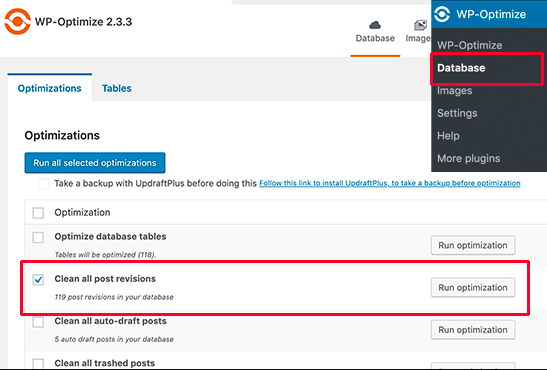
Clean Up Existing Revisions: You can use plugins like “WP-Optimize” or “WP-Sweep” to clean up existing revisions. These plugins can also help you optimize your database by removing unnecessary data.
Manual Database Cleanup: If you’re comfortable working with databases, you can manually remove revisions from the wp_posts table using SQL commands. However, make sure to back up your database before making any changes.
Regularly Backup Your Site: Before making any significant changes, including optimizing revisions, it’s crucial to have a complete backup of your WordPress site. This ensures that you can restore your site in case something goes wrong.
How to limit WordPress revision
Where X is the number of limits. X = 2 will only be 2 revisions for a post.
define('WP_POST_REVISIONS',X);
How to Delete Old Post Revisions in WordPress
To delete old post revisions in WordPress, you have a few options. You can use a plugin or execute SQL queries manually. Here’s how to do it using both methods:
Deleting WordPress post revisions Using a Plugin (WP-Optimize)
Install and activate the WP-Optimize plugin from the WordPress Plugin Directory.
Once activated, go to WP-Optimize tab in your WordPress dashboard.
Under the Database Tables section, you’ll find a list of tables that can be optimized. Look for the post revisions option.
Check the box next to post revisions and any other database entries you want to clean up.
Scroll down and click the Run Optimization button to clean up your database, including deleting old post revisions.
Deleting WordPress post revisions via phpMyAdmin
If you’re comfortable working with databases, you can manually delete old post revisions using SQL queries. However, proceed with caution and make sure to back up your database before making any changes.
Log in to your website’s hosting control panel or use a tool like phpMyAdmin to access your site’s database.
Locate your WordPress database in the list of databases (if you have multiple databases).
Replace wp_ with your actual WordPress database table prefix if it’s different.
How to delete WordPress revisions With WP-CLI
You can use the WP-CLI tool to delete WordPress revisions using the command line. Here’s how you can do it:
Access Command Line: Open your terminal or command prompt on your computer.
Navigate to Your WordPress Installation: Use the cd command to navigate to the root directory of your WordPress installation.
Run the WP-CLI Command: Use the following WP-CLI command to delete revisions: wp post delete $(wp post list --post_type='revision' --format=ids) This command first retrieves a list of all post revisions using wp post list and then passes the list of IDs to the wp post delete command to delete them.
Confirm Deletion: After running the command, you might be asked to confirm the deletion. Type y to confirm and proceed.
Please note:
Ensure you have the WP-CLI tool installed on your server.
Running this command will permanently delete all post revisions. Make sure you have a backup of your database before proceeding.
Be careful when using command-line tools, especially when dealing with database-related actions.
If you want to delete only specific revisions or want more control over the process, you might need to modify the WP-CLI command accordingly. Always be cautious and consider testing the command in a development environment before applying it to your live site.
How to Completely Disable WordPress Post Revisions
To completely disable WordPress post revisions, you can use the wp-config.php file or a plugin. Here’s how you can do it using both methods:
Method 1: Using wp-config.php:
Connect to your website’s server using FTP or a file manager.
Locate the wp-config.php file in your WordPress root directory.
Open the wp-config.php file in a text editor.
Add the following line of code just above the line that says /* That's all, stop editing! Happy blogging. define('WP_POST_REVISIONS', false); This will completely disable post-revisions.
Save the wp-config.php file and upload it back to your server.
Method 2: Using a Plugin (Disable Post Revision):
Log in to your WordPress admin dashboard.
Go to “Plugins” and click “Add New.”
Search for “Disable Post Revision” in the plugin search bar.
Install and activate the “Disable Post Revision” plugin.
Once activated, the plugin will automatically disable post revisions on your site.
No matter which method you choose, keep in mind:
Disabling post revisions will prevent WordPress from saving multiple revisions of your posts, which can help keep your database cleaner.
While this action can reduce database size, it also means you won’t have the ability to revert to earlier versions of your posts.
If you choose to disable post revisions, it’s a good practice to make sure you have regular backups of your site’s content and database, so you can restore the content if needed.
After making any changes to your WordPress site’s configuration or using plugins, it’s a good idea to check the site’s functionality and appearance to ensure everything is working as expected.
Important:
Always back up your database before making any changes.
If you’re not comfortable with SQL queries, consider using a plugin or seeking professional help to avoid accidentally damaging your site.
Whichever method you choose, make sure to regularly perform such maintenance tasks to keep your WordPress database optimized and your site’s performance in top shape.
If you liked this guide, then please consider subscribing to our YouTube Channel for WordPress video tutorials. You can also find us on Twitter and Facebook.