
Category: Geodirectory

  • Top 10 Tips for Improving User Experience on Your Geodirectory Site

    Top 10 Tips for Improving User Experience on Your Geodirectory Site

    Here are some tips and tricks to improve user experience on a Geodirectory site:

    1. Use intuitive and clear navigation: Ensure that users can easily find what they’re looking for and navigate around the site.
    2. Make use of high-quality images: High-quality images help to create a professional and attractive look and feel.
    3. Incorporate search functionality: Provide a search bar that allows users to easily search for specific listings or categories.
    4. Offer filters and sorting options: Allow users to filter and sort listings based on various criteria, such as location, price, and rating.
    5. Make use of Google Maps integration: Integrating Google Maps into your site can help users to find locations more easily and provides a visual representation of the listings.
    6. Provide clear and concise information: Provide clear and concise information about each listing, including descriptions, images, and contact details.
    7. Make use of customer reviews: Encourage customers to leave reviews about their experiences, which can help to build trust and credibility.
    8. Optimize for mobile devices: Ensure that your site is optimized for mobile devices so that users can access it easily on the go.
    9. Use responsive design: Use responsive design to ensure that your site looks great on different devices and screen sizes.
    10. Provide easy access to contact information: Make it easy for users to contact the business or organization through a contact form, email, or phone number.

    By following these tips, you can create a user-friendly and enjoyable experience for your Geodirectory site visitors.
  • How to create a Directory website using Elementor and Geodirectory – Step by Step

    How to create a Directory website using Elementor and Geodirectory – Step by Step

    Elementor is the most popular page builder used in WordPress. As per the plugin stats, it has been used in around 10 Million WordPress websites. In this article, I will explain how you can create a directory website using the most popular plugin Elementor, and the most popular WordPress Business Directory Plugin Geodirectory.

    Geodirectory required the pro version of Elementor for easy setup and full functionality.

    1. Install WordPress with the Elementor Plugin

    You can check the below Youtube series to set up and know more about Geodirectory and Geodirectory addon setup.

    2. Setup Geodirectory plugin

    You can check the below Youtube series to set up and know more about Geodirectory and Geodirectory addon setup.

    You can also read more on How to create a directory site in WordPress using WP Geodirectory – Step-by-Step Guide.

    3. Customize Geodirectory templates using Elementor builder

    You can follow the below video to customize the Geodirectory template using the Elemntor page builder.

    If you are not yet sure or if you are familiar with Divi page builder. You can check How to create a Directory website using Divi theme and Geodirectory – Step by Step.

    Or If you are still not happy. checkout Top 5 ways to create a Directory site in WordPress.

    If you like our videos, you can subscribe to our Youtube channel.

  • How to create a Directory website using Divi theme and Geodirectory – Step by Step

    How to create a Directory website using Divi theme and Geodirectory – Step by Step

    Since you are checking this blog post, I am sure you already know about the Geodirectory and Divi. In this blog post, I will give a demonstration of how you can build a successful directory site using Geodirectory and Divi themes.

    Divi is the most popular and paid theme.

    Now let’s follow the below steps to create a directory website using Divi theme and Geodirectory.

    1. Install WordPress with the Divi theme

    The first thing is to install WordPress in your Hosting and Install Divi theme in it. You can follow the below video to install the Divi theme on your WordPress site.


    2. Setup Geodirectory plugin

    Now that WordPress is ready with the Divi theme. It’s time to install and set up the Geodirectory plugin.
    Geodirectory has some learning curves so you might get confused between settings.
    To understand Geodirectory and its settings in detail you can follow How to create a directory site in WordPress using WP Geodirectory – Step-by-Step Guide Or You can follow the below video to set up the Geodirectory plugin.


    3. Customize Geodirectory Listing Detail templates using Divi builder

    Geodirectory has different templates for Listing Archive, Listing Detail, and Search page. In the below video, you will see, how you can create and customize the Geodirectory Listing Detail page layout using Divi Builder.


    4. Customize Geodirectory Archive templates using Divi builder

    Similarly, in the following video, you will see how to create and customize the Geodirectory Listings Archive page using Divi Builder.

    If you are not yet sure or if you are familiar with the Elementor page builder. You can check How to create a Directory website using Elementor and Geodirectory – Step by Step

    Geodirectory is a theme-independent plugin. which means you can use it with any theme, follow this article How to create a directory site in WordPress using WP Geodirectory – Step-by-Step Guide

    Or If you are still not happy checkout Top 5 ways to create a Directory site in WordPress.

    If you like our videos, you can subscribe to our Youtube channel.

  • How to create a directory site in WordPress? – Step-by-Step Guide

    How to create a directory site in WordPress? – Step-by-Step Guide

    One of my clients earns monthly approx $3000 USD from his Directory listing website. he said he hardly put in 5-10 hours weekly on that site work.

    I am sure you have used a Directory site before. These are a few popular ones that most people know YelpYellow Pages, and eBay

    Directory sites have demand on the internet if they are niche-specific and categories. This kind of unique website has a lot of potential for monetization and earning. I have seen many people have ideas for the Directory site but they find it hard to execute them.

    In this post, you will get a step-by-step insight on How to create a directory site in WordPress.

    Step 1: Choose a Niche

    Choosing a niche is important when you planning to create a directory site. There are already big fish working in the Directory business and you can’t compete with them directly.

    So you can select a specific niche and be the best in that.

    Example: Restaurants in New York, Lawyers in LA

    Step 2: Buy a domain and Hosting

    You will need a Domain and Hosting to build your directory site.

    I will suggest Hostinger because it has many options, tools, and the best Hosting support so far.

    I am also using it for all my websites.

    Step 3: Setup WordPress

    Hostinger has a prebuild Auto Installer tool that will help you to install WordPress and set it up on your domain name.

    Step 4: Install a Directory Plugin

    Now that you have a WordPress website ready. It is time to install a Directory plugin.

    There are many options available but not all are scalable. So I have created a list of the Top 5 ways to create a Directory site in WordPress.

    I personally choose the Geodirectory plugin for my clients. Because this plugin fulfills almost all the requirements of a Directory listing site.

    You can check

    How to create a directory site in WordPress using WP Geodirectory – Step-by-Step Guide

    How to create a Directory website using Divi theme and Geodirectory – Step by Step

    How to create a Directory website using Elementor and Geodirectory – Step by Step

    Step 5: Create and Import data

    Now the time is to create data for the listing site. You can either create it manually (which will require lots of free time) OR Import them with a CSV file.

    Geodirectory provides you the option to import the CSV file. You can check the below video to know how to import it.

    Step 6: Earn money

    Now that the Directory site is all set up, you can focus on marketing it and earning money from it.

    while you have a good sleep

    You can read this article which explained it in detail 8+ Ways to Monetize a Directory Website.

  • How to Create a Business Directory Website with Geodirectory

    How to Create a Business Directory Website with Geodirectory

    One of my client earns monthly approx $3000 USD from his Directory listing website. he said he hardly put in 5-10 hours weekly on that site work.

    Often people have an idea for a Directory site but they find it hard to create a website for it. The WordPress and GeoDirectory – WordPress Business Directory Plugin and Classified Ads Listings made it easy for us. Now you don’t have to be a Web Developer to create a directory site.

    I am writing this blog post to describe How you can easily create a directory site in WordPress using the WPGeodirectory Plugin.

    Why WP Geodirectory Plugin?

    GeoDirectory – WordPress Business Directory Plugin is created and maintained by Ayecode. It has over 10,000+ active installations and 4.5+ Ratings on wp.org.

    The WP Geodirectory plugin has a variety of add-ons, themes, and third-party themes that covers almost all aspect of a Directory site. It also has compatibility with builders like Elementor, Divi, and Gutenberg block editor. You can check a few demos of the Directory site created using the WP GeoDirectory plugin.

    You can check lists of Directory sites created using the WP Geodirectory plugin here.

    01. Setup WordPress

    Install WordPress on your Hosting. You can follow this blog post if you are not sure how to do so.

    How to Install WordPress – Complete WordPress Installation Tutorial

    You can use any theme that you like. Since the WP Geodirectory plugin is created as per WordPress coding standards so it is not theme-specific.

    mostly it supports all the themes.

    02. Setup the Geodirectory Plugin

    we have created this Youtube video that describes how you can set up the WP Geodirectory plugin.

    you might find the WP Geodirectory plugin and settings confusing. you can follow this video to understand each setting in deep.

    If you like this video, you can subscribe to our Youtube channel.

    03. Setup GD addons

    WP Geodirectory has different add-ons that cover almost all the features of a directory site. you can find the addon list here

    WP Geodirectory Addons

    we already have videos for all of these add-ons. you can find the playlist below.

    04. Import the data

    Now that you have the WP Geodirectory setup properly. you will have to add the real data to the site.

    You can do it manually and add each business listing one by one. which will take lots of time and effort.

    WP Geodirectory has provided a CSV import feature, through which you can bulk import Listings on your directory site.

    You can follow this video, where we have explained it with a screencast.

    Now you have a complete directory site setup. Now you focus on SEO and Social Media Marketing to promote your site to the target customers or visitors.

    You can also check
    How to create a Directory website using Elementor and WP Geodirectory – Step by Step.
    How to create a Directory website using Divi theme and WP Geodirectory – Step by Step.

    If you like our videos, you can subscribe to our Youtube channel.

  • I cant see the Geodirectory setup wizard on plugin activation

    I cant see the Geodirectory setup wizard on plugin activation

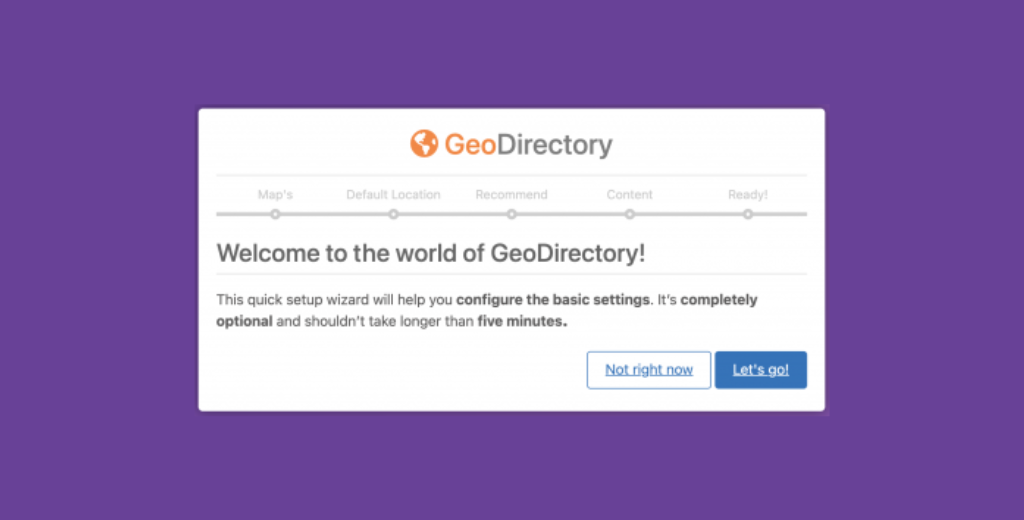
    Setup wizard only visible for the first time of plugin setup on your website.

    so just in case, you missed it for the first time and you want to open it up again.
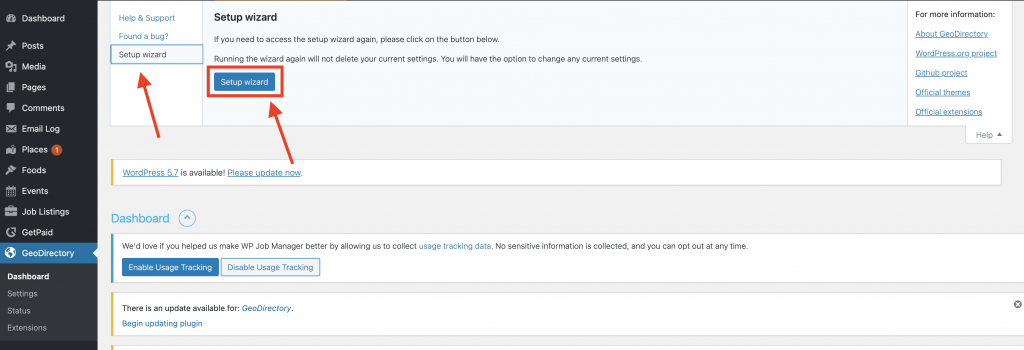
    You can follow these steps.

    Steps to open up Geodirectory plugin setup wizard

    Step1: Go to the site admin panel ( wp-admin )

    Step2: Go to the Geodirectory Dashboard tab.

    Step 3: Click on help setting

    Step 4: Click on setup wizard

    and you will have the setup wizard open.